
A study set turns your own class material into practice. Because it is built from what you add, the questions match what your class covered.
Step 1: Start a new set
- Open Learning from the sidebar or tab bar.
- If you have no sets yet, tap Get started. Otherwise tap the round + button.
Step 2: Add your material
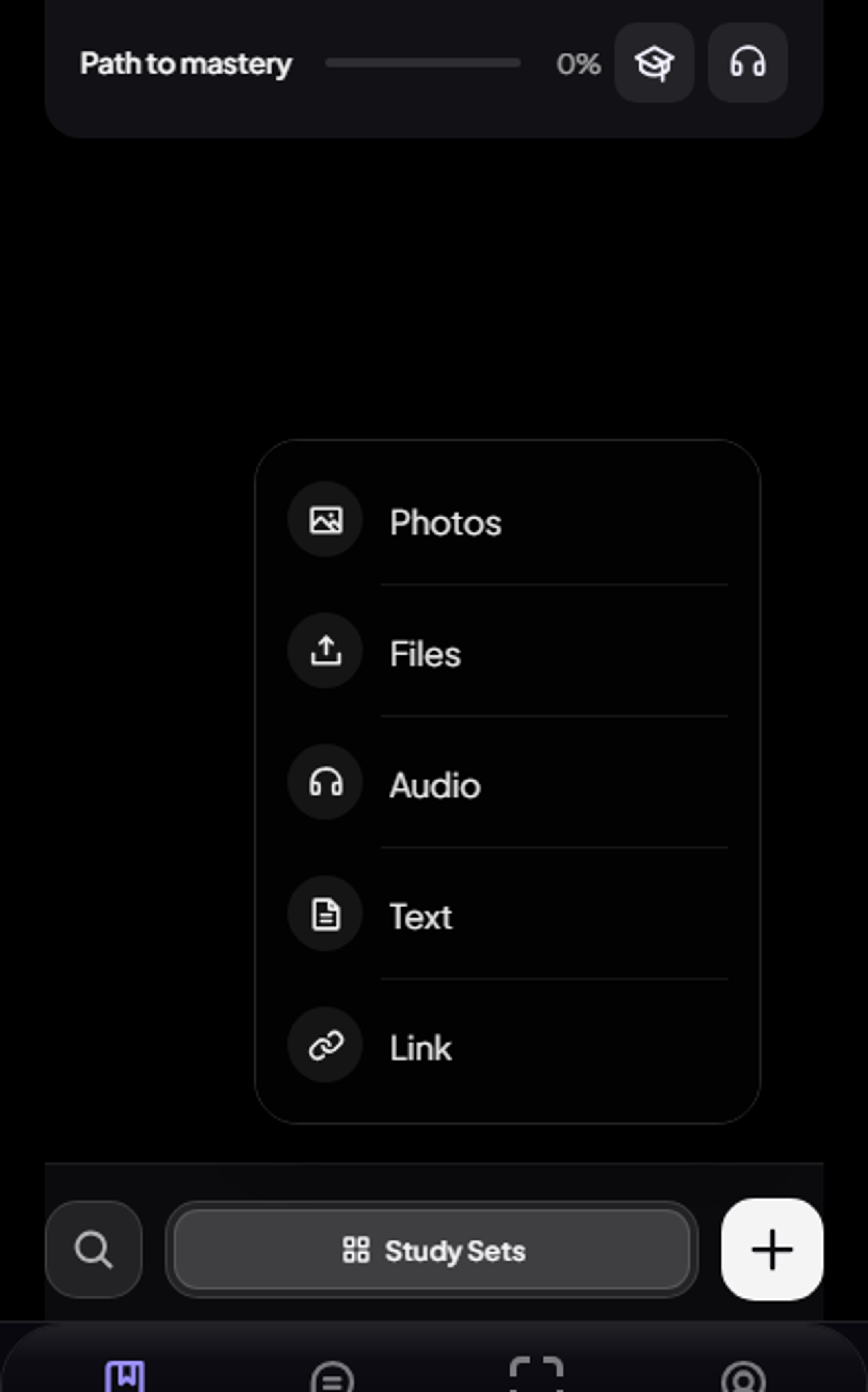
Choose a source:
- Photos of notes or a whiteboard (on iPhone, Camera takes one now).
- Files (called File upload on iPhone): PDF, Word, or plain text.
- Audio: a lecture recording in MP3, M4A, WAV, or AAC.
- Text: paste notes, an essay, or a reading.
- Link: a web article, or a YouTube video with captions.
Each import can include up to 3 photos, 3 files, and 3 links.
Step 3: Pick your study methods
On the next screen, give the set a name under Study set name, then choose from Study methods:
- Study guide: key concepts and takeaways in one overview.
- Notes: concise bullet notes you can skim.
- Flashcards: flip cards for active recall.
- Quiz: mixed question types to test understanding (Premium).
- Podcast: an audio conversation between two hosts about your material.
- Tutor: ask follow-up questions about your material.
- Games: Match and Word Guess from your vocabulary.
Some methods have a Customize option. For a quiz you can pick a Quick mix preset (Balanced, Recall, or Exam), the Difficulty, and the Question mix (true/false, multiple choice, short answer, long answer). Set Study set language if you want the set in another language.
Step 4: Generate
Tap Generate. Larger sources take longer, and the work keeps going if you leave the screen. When it is ready, open the set and use the tabs at the top. See Flashcards, quizzes & games for how each one works.
Daily limits
Free accounts can create 5 study sets a day; Premium can create 30. You can keep up to 40 saved sets.
Still stuck?
Email thebrainboostsupport@gmail.com with what you tried, your device, and a screenshot if you can. You can also check the FAQ.