
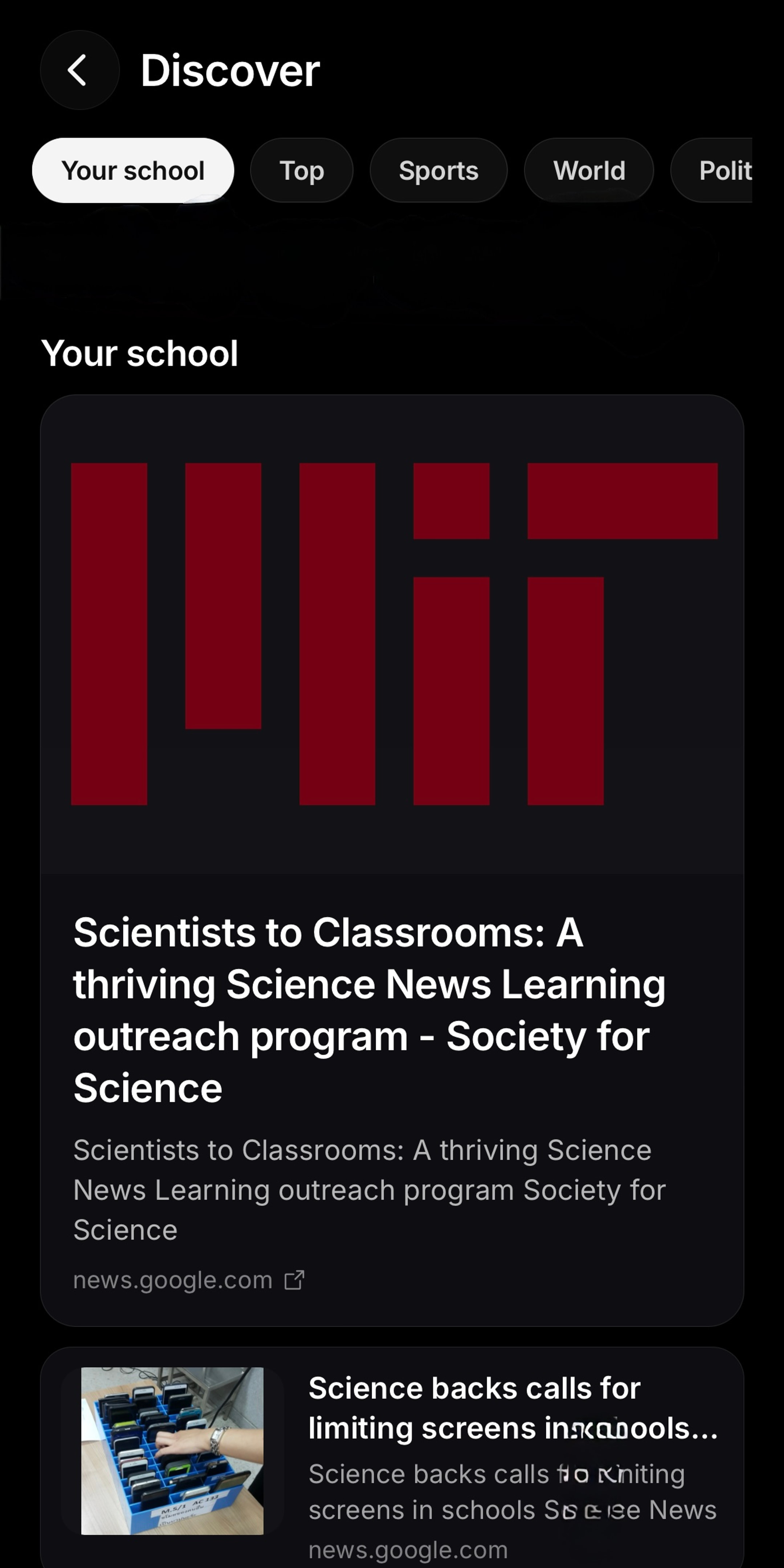
Discover is a feed of stories you can learn from. If you set your school, it opens on stories about that school.
Set your school
- Open Profile and tap School & classes. On a computer you can also use School settings in the sidebar.
- Tap Choose your school and search for it.
- Add your classes if you like. BrainBoost uses your school and classes so answers fit your courses.
Your school is a label you choose. BrainBoost does not connect to your school's records and is not affiliated with your school.
Browse stories
- Open Discover from the sidebar.
- Switch categories: Your school, Top, Sports, World, Politics, Tech, Science, and Entertainment.
- If a category says "Nothing here yet," tap Refresh or try another category.
Turn a story into a lesson
Open a story in chat to ask what it means, get background, or connect it to a class. A drought story is a way into the water cycle; an election story is a way into how government works. Answers about current events link to their sources so you can read the original reporting.
Change or remove your school
Go back to School & classes in Profile at any time to pick a different school. Parents' accounts do not show this row.
Tips
- Check the date and source on a story before you cite it in schoolwork.
- Ask the chat for the background you are missing, for example "What is a filibuster?" or "Why does a drought raise food prices?"
- Science stories pair well with a class: ask how a new finding connects to what you are learning this unit.
Still stuck?
Email thebrainboostsupport@gmail.com with what you tried, your device, and a screenshot if you can. You can also check the FAQ.