
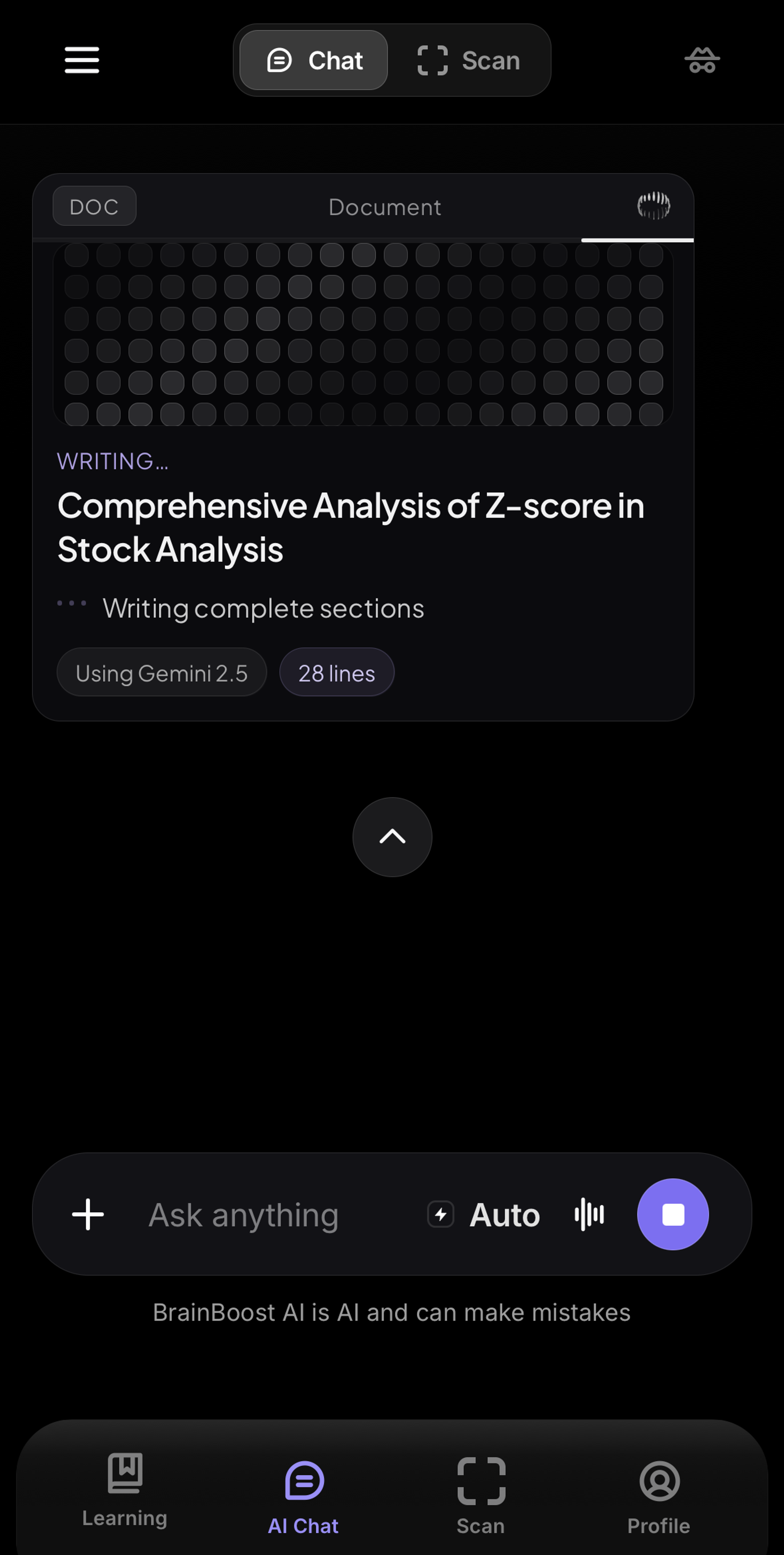
AI Chat can write a formatted document, such as an outline, a one-page study sheet, or a report, and save it as a file you can download.
Create a document
- In AI Chat, ask for the document you want, for example "Make a one-page study sheet on the French Revolution with a timeline table."
- The document appears as a file card in the chat. Tap Open or View to read it.
- Ask for changes in plain words: "shorten the intro," "add a table of key dates," or "make section 3 simpler." The document updates.
Export it
- On the file card, tap Save.
- Choose a format:
- PDF: best for sharing and printing.
- Word: an editable .docx file.
- Markdown: plain text with formatting marks.
- HTML: a web page file.
You can also tap Copy to paste the text somewhere else.
Find files later in the Library
- Open Library from the sidebar.
- Switch between Files and Images.
- Use Search library, or Sort and filter to sort by recently edited, oldest first, or title, and to filter by type (documents, slides, apps and websites, spreadsheets, or code).
- Open a file and export it again with the same formats.
If the Library is empty, it says "Documents you create in chat show up here."
Use drafts the right way
A generated draft is a starting point. Use it to see a clear structure, then write in your own words and add your own sources and analysis, following your teacher's rules on AI.
Still stuck?
Email thebrainboostsupport@gmail.com with what you tried, your device, and a screenshot if you can. You can also check the FAQ.