
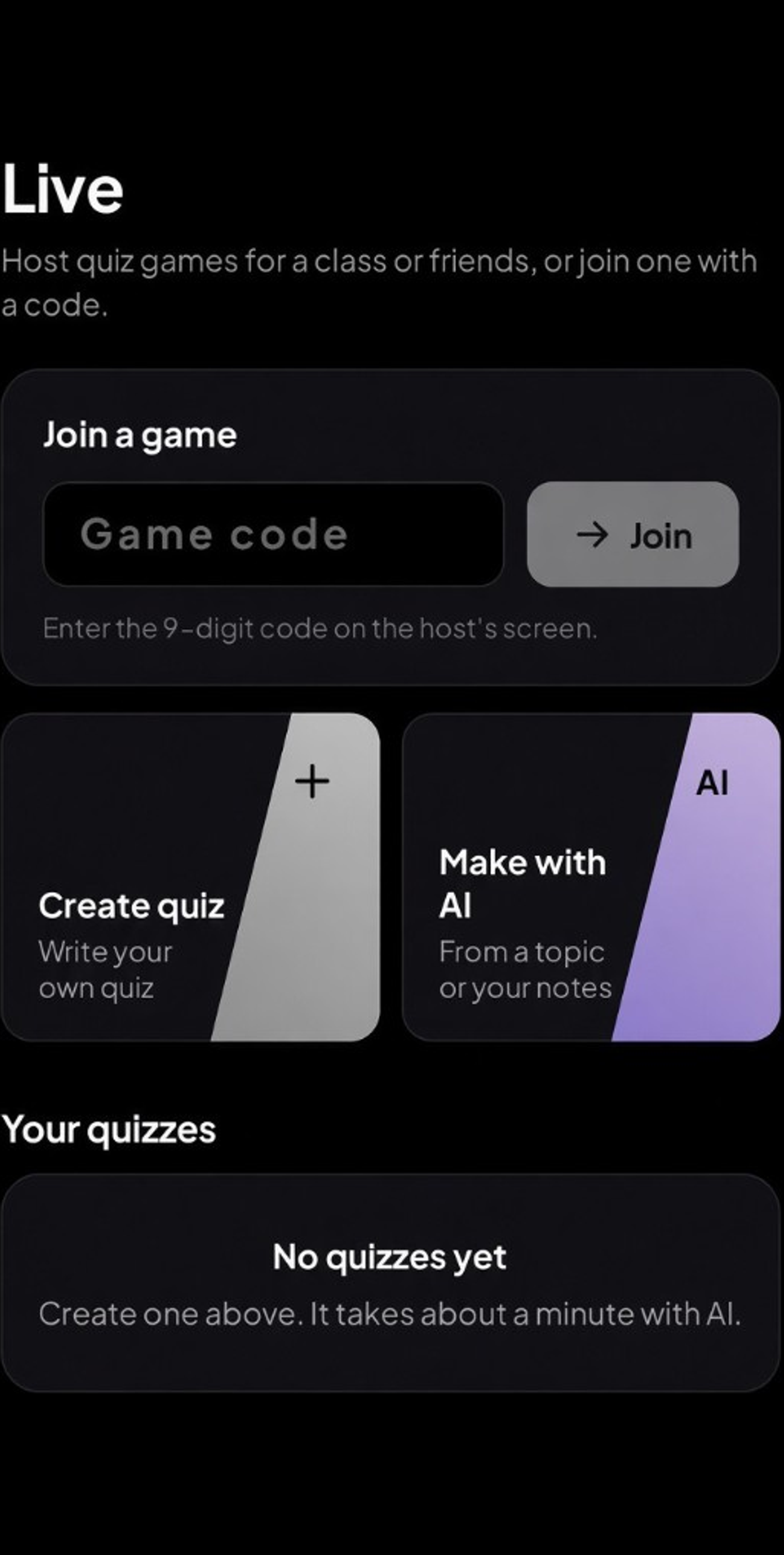
Live runs quiz games for a room, and Classes is BrainBoost for Schools, where teachers run classes and students join them.
Join a Live game
- Open Live from the sidebar or tab bar.
- Tap Join a game and enter the 9-digit code the host shows.
- Answer each question on your own device as the host moves through the quiz.
Host a Live game
- In Live, tap Create quiz to write your own questions, or Make with AI to have AI draft one for you.
- Review the questions, then host the game and share the code with players.
- Afterward, open Past games to see how players did.
Classes for teachers
- Open Classes and tap Create a class.
- Set up the class and its assignments and quizzes. The free plan lets you set up to 3 classes and explore every teacher tool.
- Students can join once you are on a paid Teacher or School plan. Your Classes home shows what is To grade and Due this week.
Plan prices are on the Pricing page. BrainBoost does not show ads inside class features.
Classes for students
- Open Classes and tap Join a class.
- Enter the code your teacher gives you, or open the join link or QR code they share.
- Your class assignments and quizzes appear in the class.
Good to know
- Live and Classes use the same BrainBoost account as the rest of the app.
- BrainBoost does not show ads inside class features.
- Questions about school plans or invoices: email thebrainboostsupport@gmail.com.
Still stuck?
Email thebrainboostsupport@gmail.com with what you tried, your device, and a screenshot if you can. You can also check the FAQ.